Build Design Systems With Penpot Components
Jul 21, 2:15 AM
Penpot's new component system for building scalable design systems, emphasizing designer-developer collaboration.
smashingmagazine.com
Design + Sketch App — Medium | Bunin
This is part of Frames for Sketch — series of short tutorials about best practices we used to make Frames Kit truly useful tool. We’ll cover on how you can make every change less painful and generate unlimited variations for your designs on the example of a simple button.
If you are not interesting in reading all this words feel free to download the freebie right here — Dynamic Buttons Tutorial
If you’re anything like me, a large part of your time is spent on wireframes that always need to be discussed before moving to high fidelity design. We all know how important this phase is, in creating websites and applications, it’s decisive time for selecting the right elements and setting their position on the chosen layout.
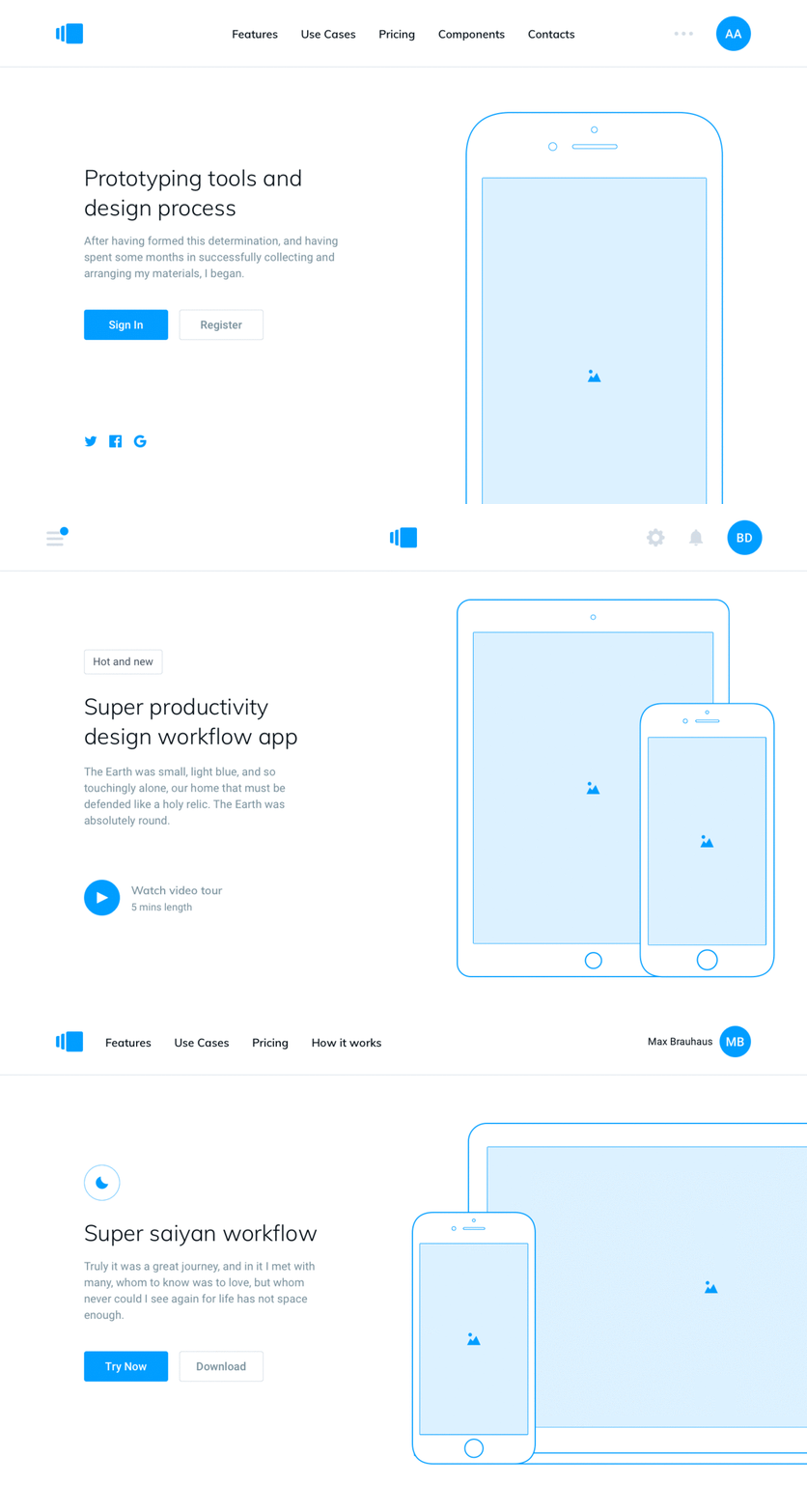
At this point, most designers already imagine how those fancy rounded buttons will be looking here and there after their godlike touch, how beautiful will this picture look with a little bit of blur in the hero section, and so on. But when it comes to reality, finalizing individual details may bring in different hypotheses and disputes about elements shapes, colors, images, lyrics, icons and everything else that matter to our customers, users and ourselves.
A lot of designers often get so much attached to the chosen design style that every new change can become more and more painful for them to make.
Well, it can be. By using combinations of simple sketch techniques you can achieve the desired flexibility when working with wireframes and layouts, as well as creating an unlimited number of design variations in no time, and stay sane and cool for the rest of the day. 😎
Sketch app allows to create customizable components and reuse them an infinite amount of time. In order them to work properly, first of all you need to do this simple steps to prepare all the elements before moving on:
It seems like a lot of work, well perhaps it is but this approach rewards you in the long run and allows you to save hundreds of hours setting up new design file when you have all ingredients always ready to be cooked.
We will consider creating one of these components using the example of a simple button, I hope that you will be able to use this technique for your future projects. First of all you need to download this demo file. 👇
To make our button useful, and we could swap its parameters, we need to put all the right child symbols into our single button. So let’s take a look at these symbols:
Now you can generate an almost unlimited variation of this buttons by simply adding more shapes, colors, icons and maybe some more states for your buttons in Sketch.
And that’s all. Hope you find it useful.
Before you leave, don’t forget to:
How to change your design on the fly in no time with Sketch was originally published in Design + Sketch on Medium, where people are continuing the conversation by highlighting and responding to this story.
AI-driven updates, curated by humans and hand-edited for the Prototypr community