Working with Sketch
In Haiku, there’s 2 ways to work with Sketch— you can either import an existing Sketch file or create new designs from scratch.
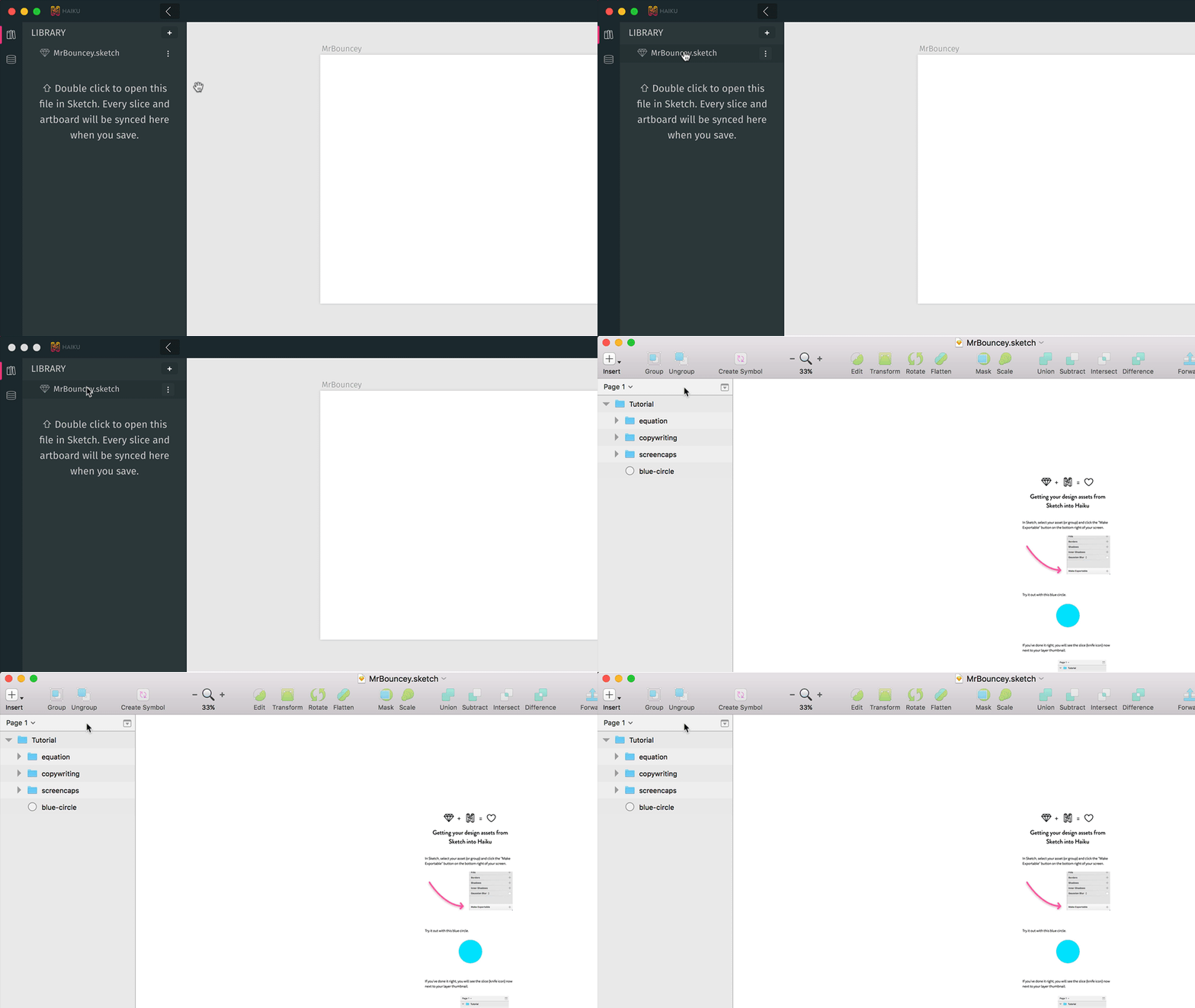
If you want to start on a new design, the best way to do that is to begin designing in the boilerplate Sketch file included in every Haiku project. Just double click to edit:
The boilerplate Sketch file contains more instructions — we’ll cover them later.
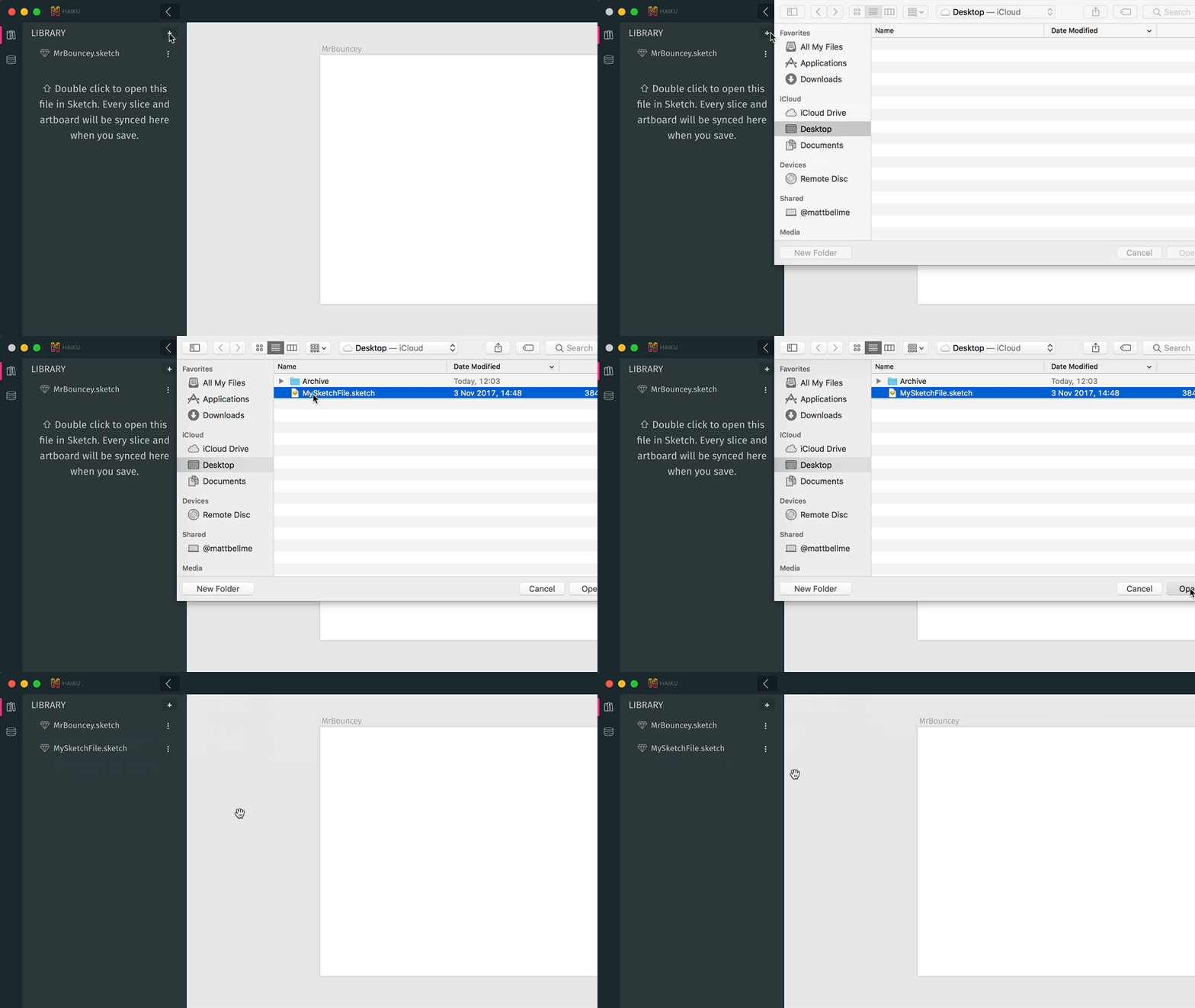
You can also import existing Sketch & SVG files:
Here’s one I made earlier.
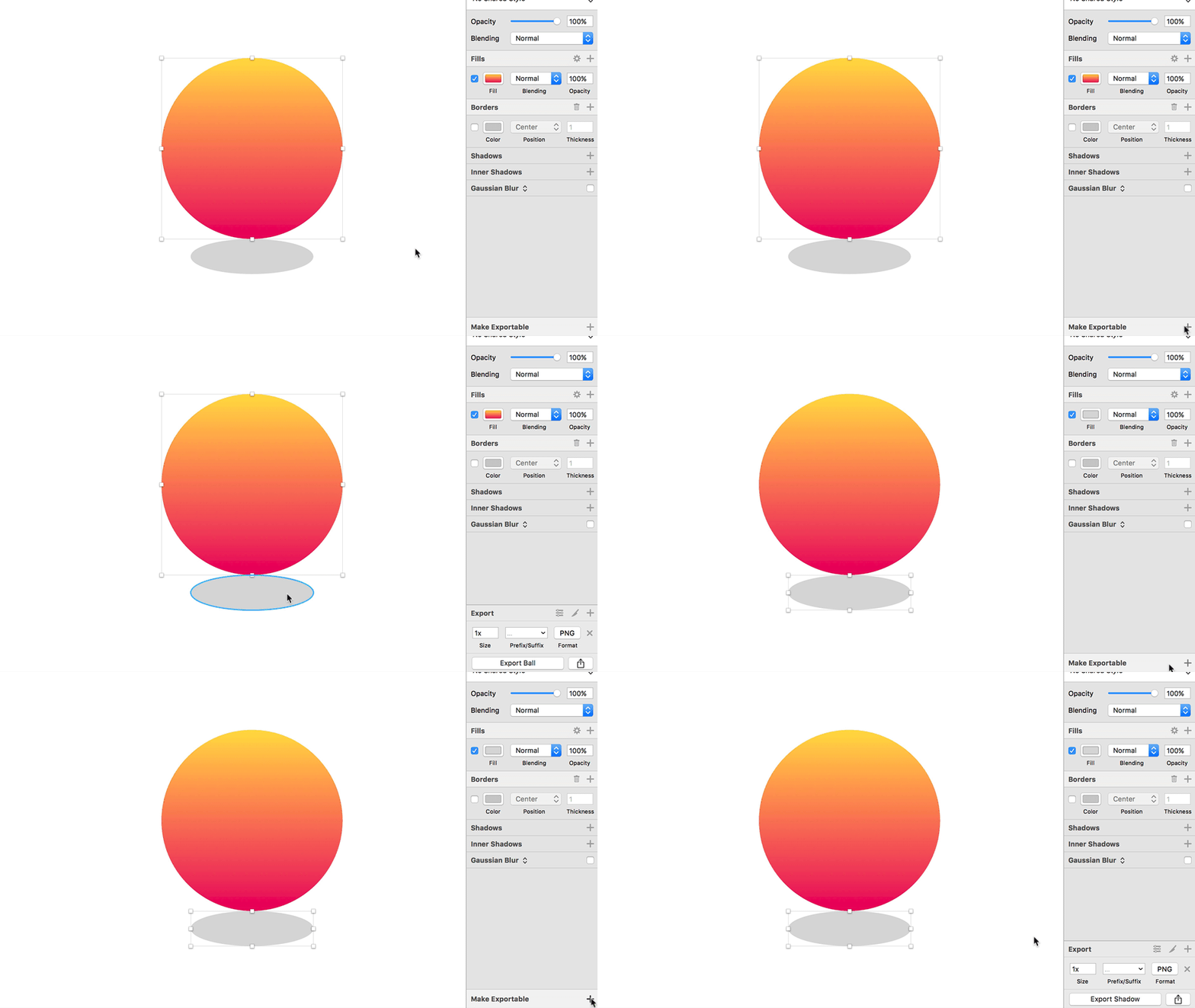
Haiku looks for artboards and slices and smartly imports them as separate elements in your library. After drawing your ball and shadow, the easiest way to convert your shapes into slices is to mark them as ‘Make Exportable’ in Sketch:
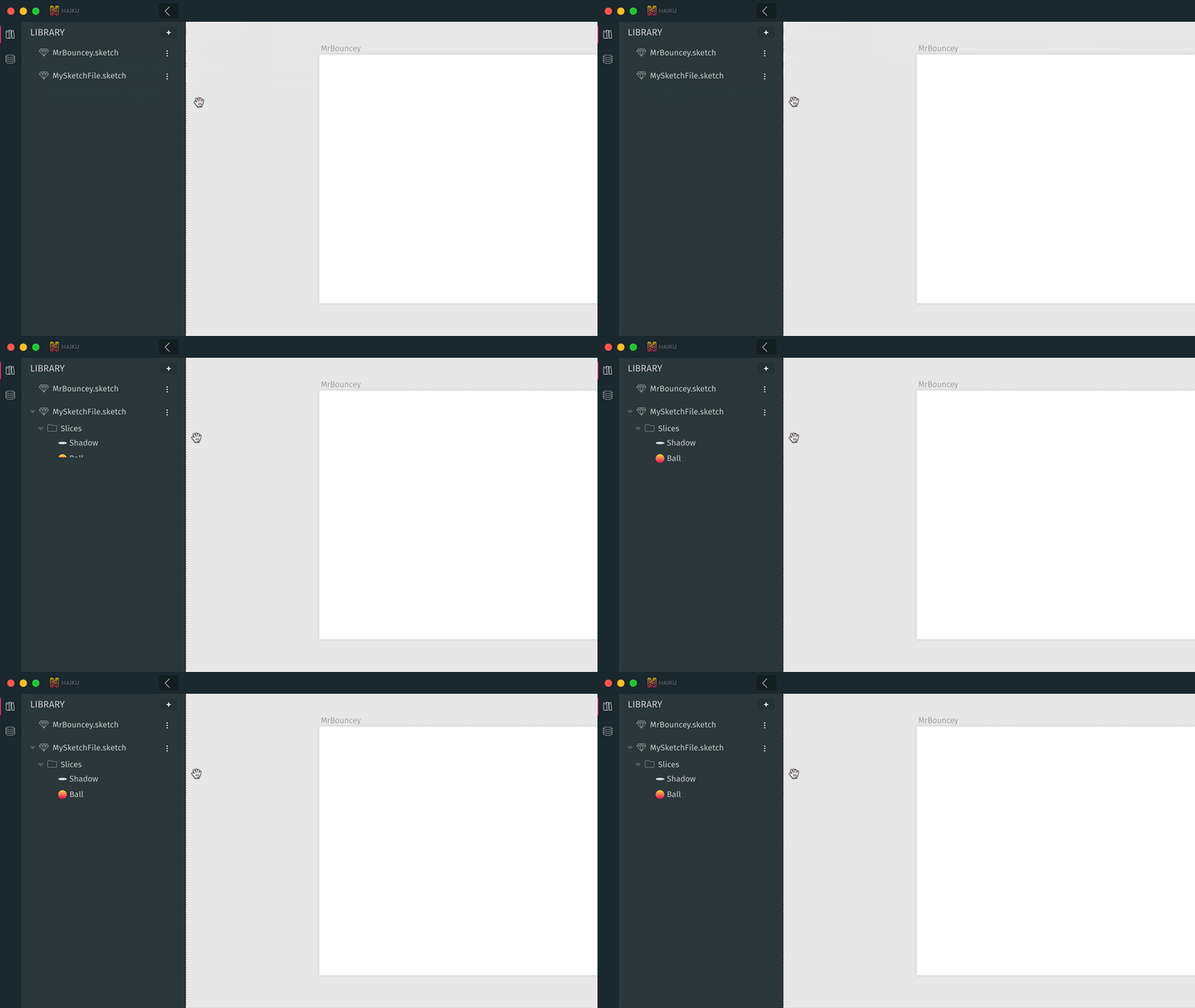
After hitting save, your Sketch slices will appear in your Haiku library:
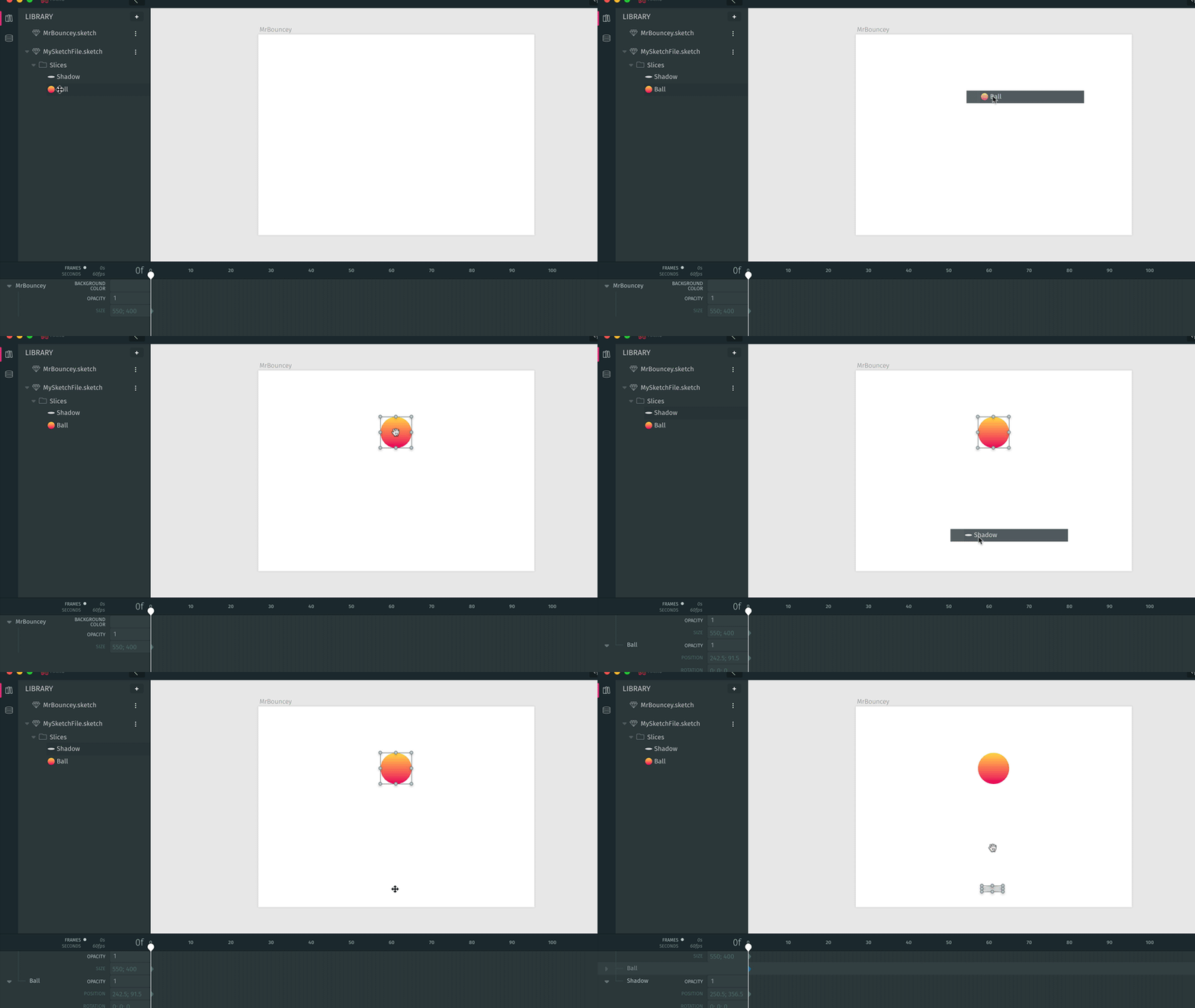
You can then drag elements from the library to the stage:
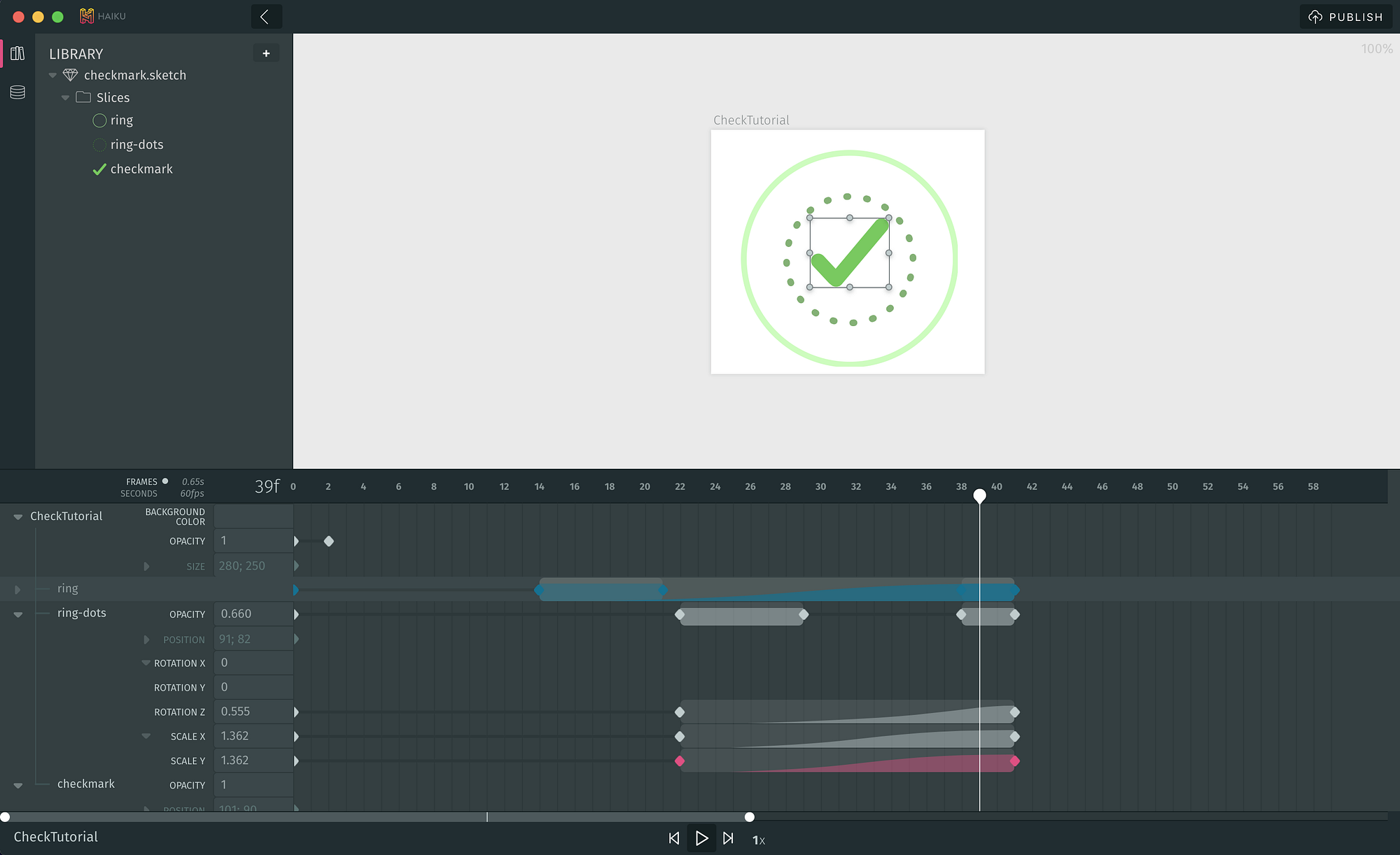
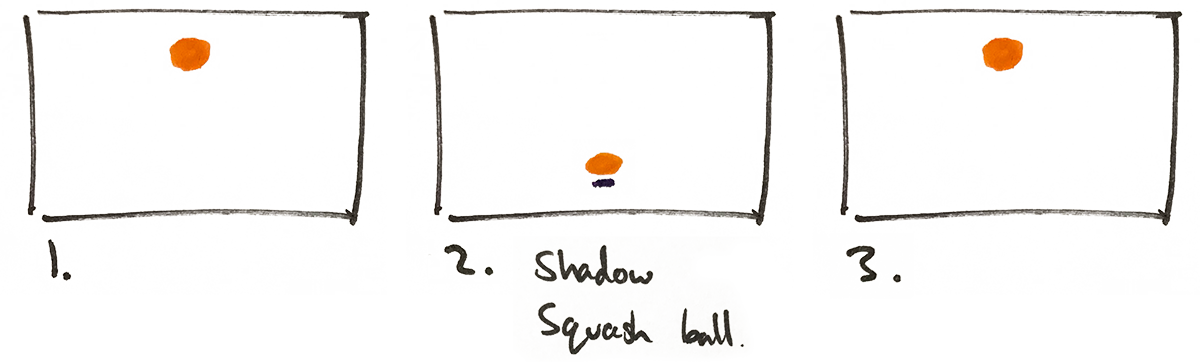
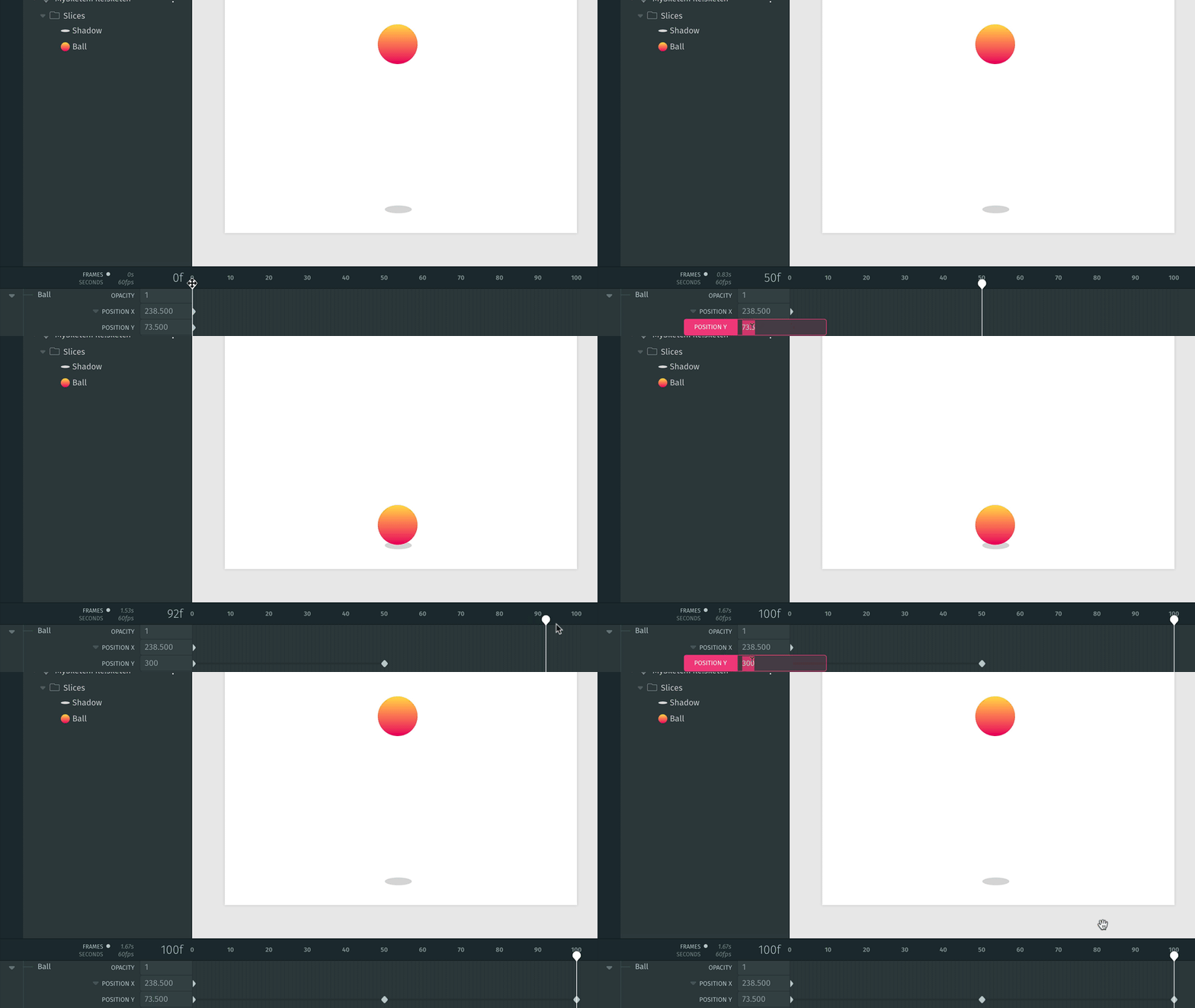
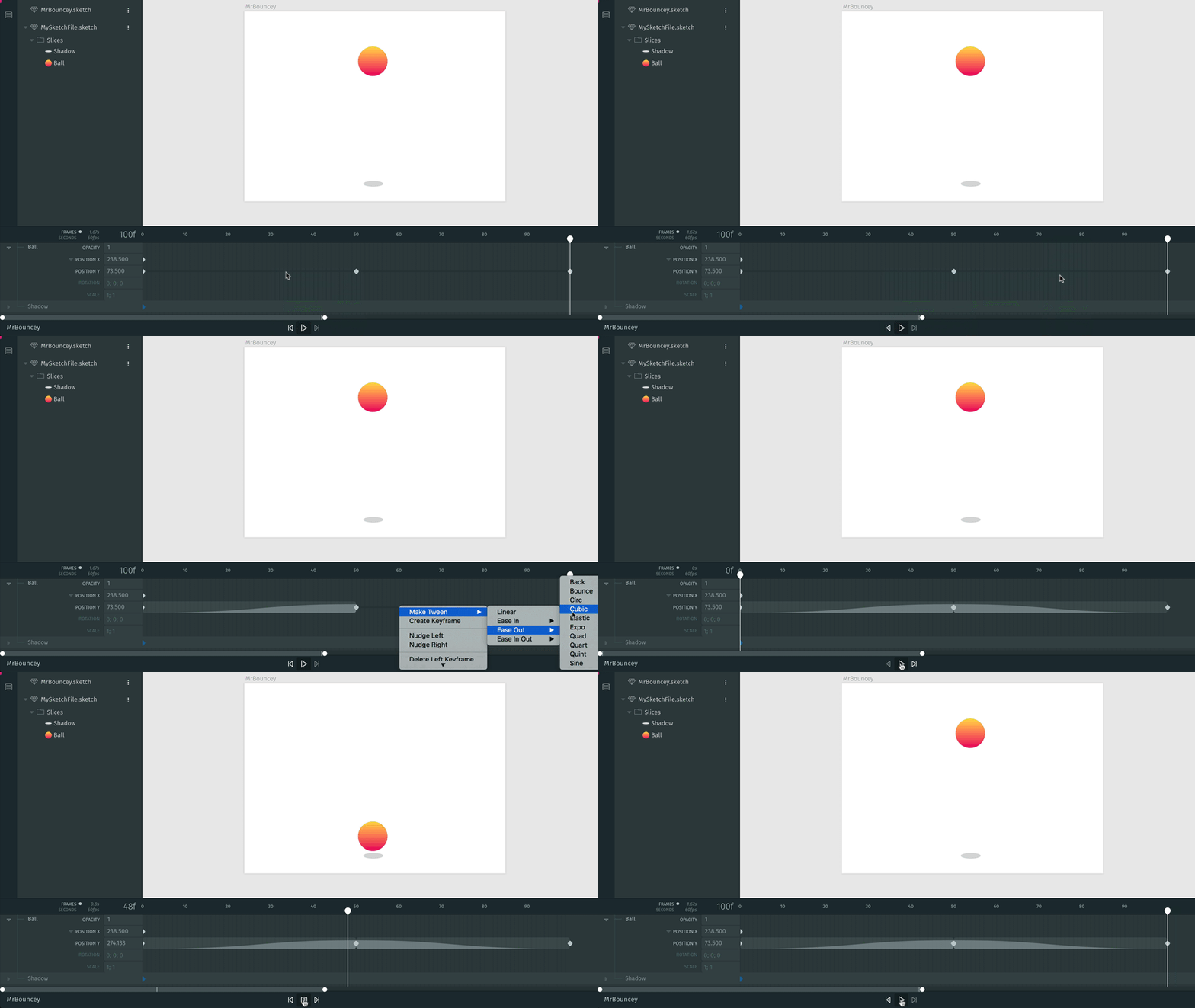
Whenever a property is edited, Haiku automatically creates a keyframe where the playhead is positioned. Think of keyframes the same way you would frames in our original storyboard.
Properties can be edited directly in the timeline, or by manipulating elements visually on the stage:
Entering accurate properties ensures a 100% seamless loop of our bouncing ball.
Now that our keyframes are set up, let’s smoothly ease between them using the built-in tween library by right clicking in the timeline. I’m using Ease In → Cubic and Ease Out → Cubic but I’d recommend experimenting with different tweens to find the right one for your animation:
Now we’re getting somewhere!
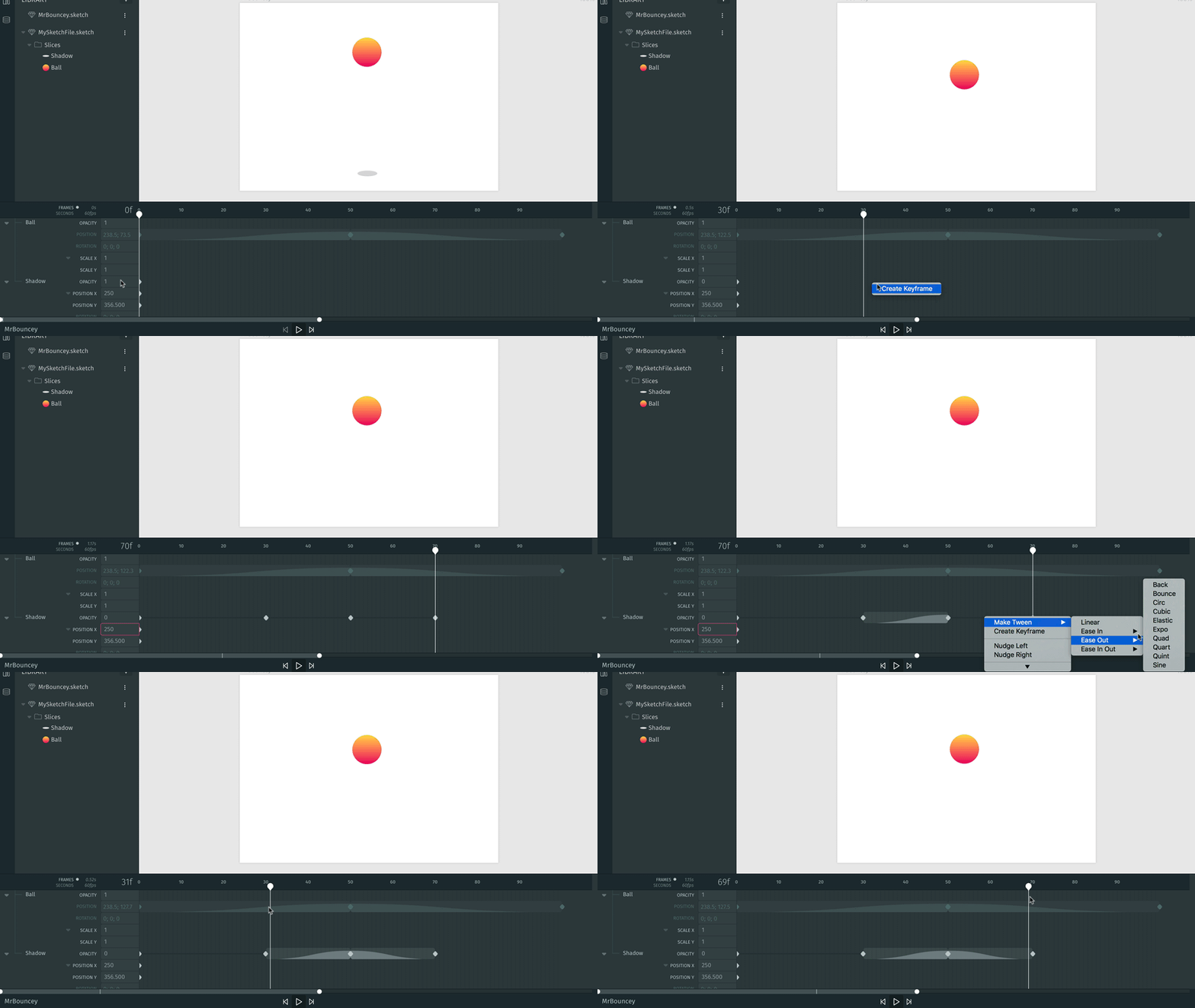
Using the basic techniques we just employed, it’s easy to add more detail. Adding keyframes part way through the timeline to reveal the shadow when the ball is near:
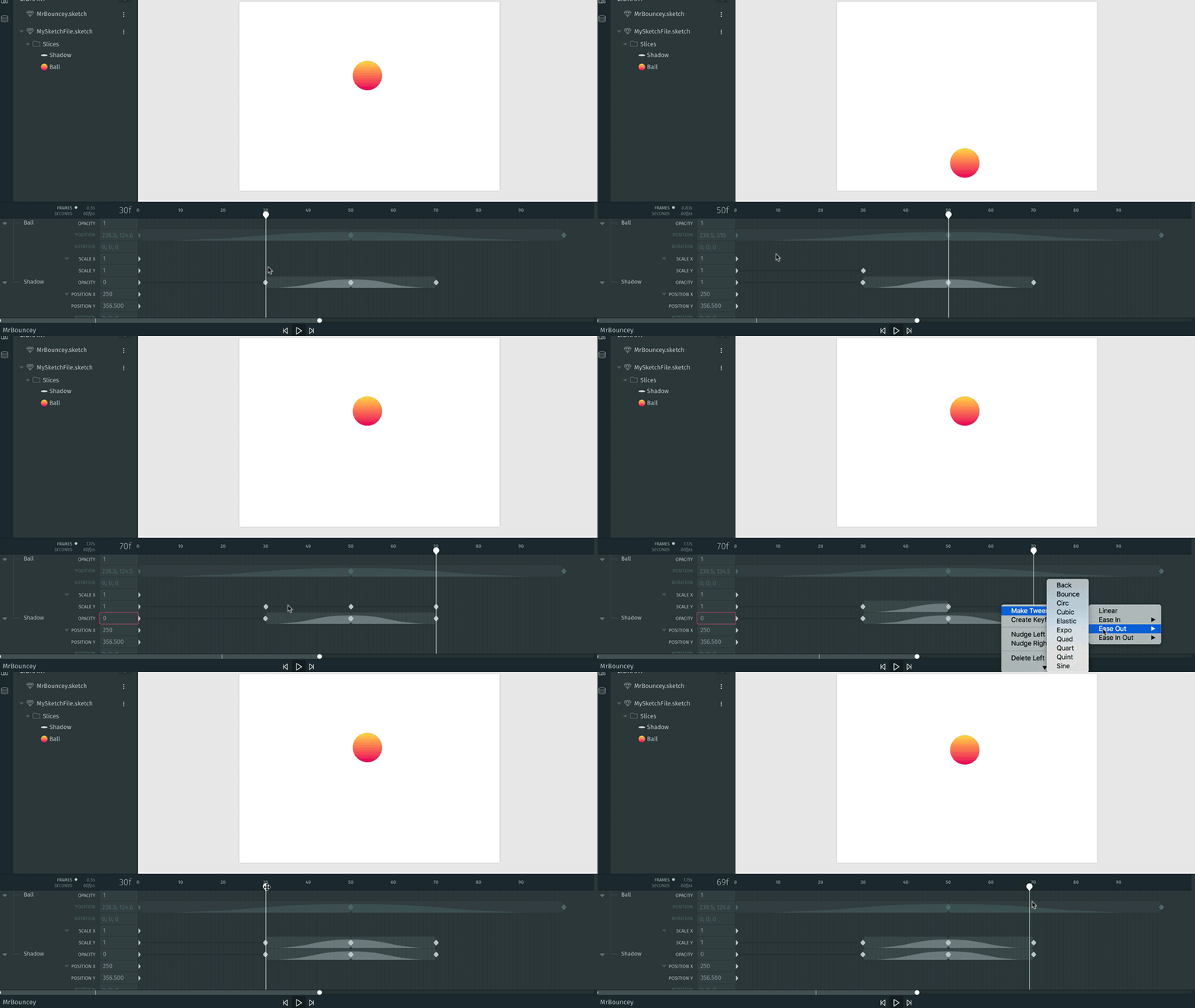
And squashing the ball vertically to emulate physics:
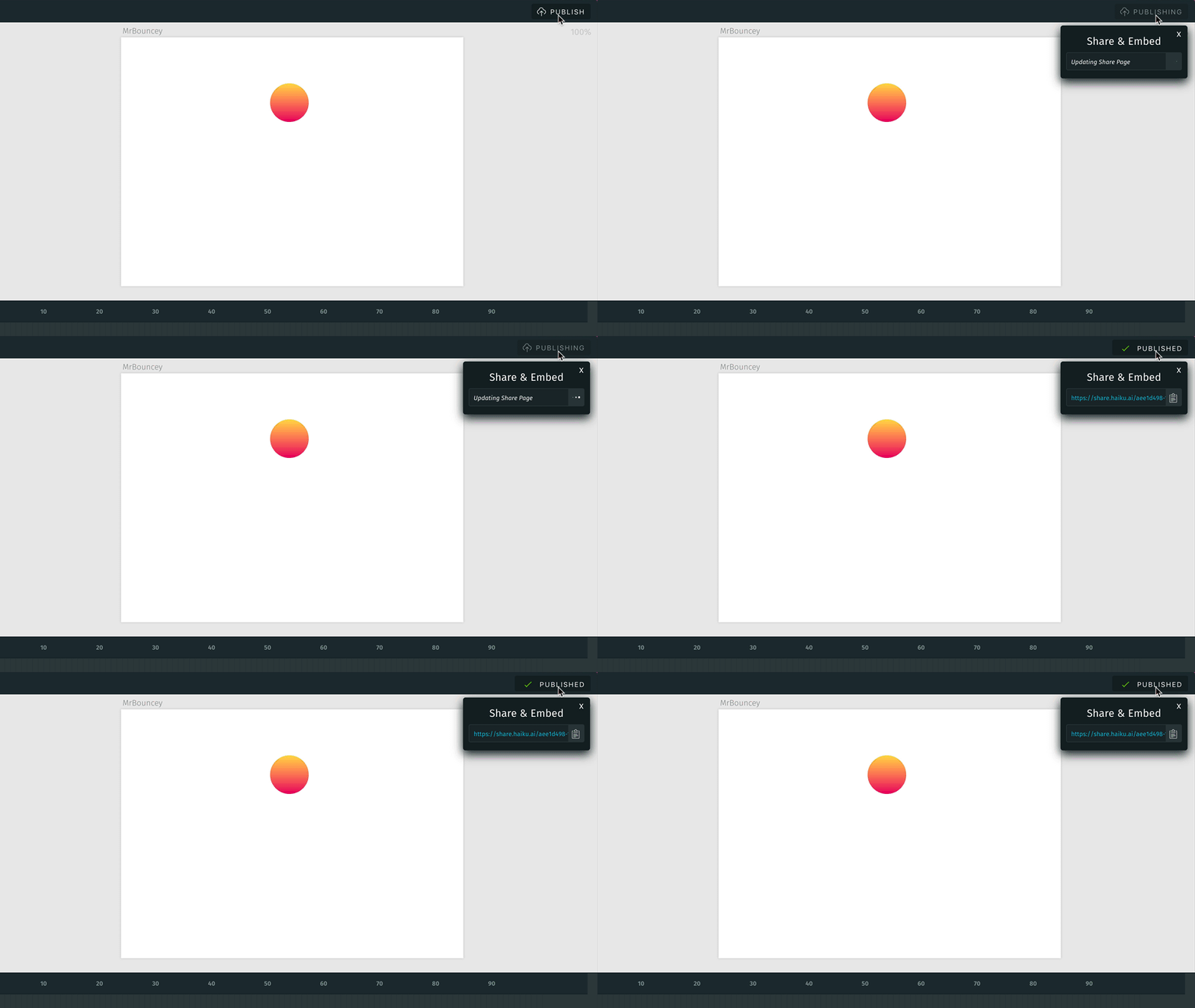
Publishing generates a unique Share URL you can use to share with others:
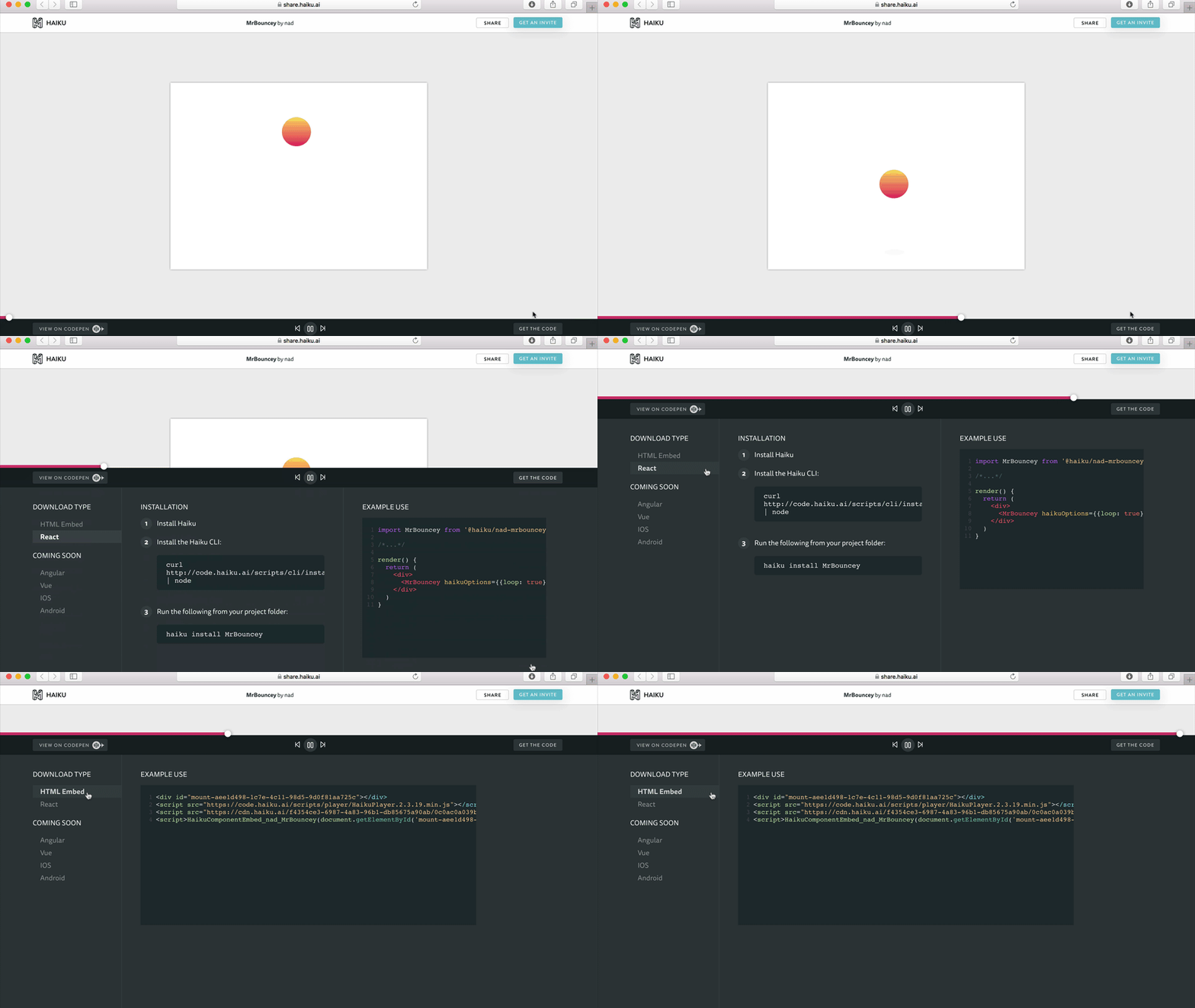
The share page lets you preview your haiku on the web with embed instructions:
View the share page for this haiku
Everything created in Haiku is pure JS/CSS ready to snap into any web app, with native renderers for iOS & Android powered by Lottie.