A team I’ve worked with recently wanted to move from using an icon font to using Android’s native Android VectorDrawables (XML files). Using Android VectorDrawables is more future-proof, more predictable and less hassle than an icon font.
We wanted to build one proper library for Android so there was less room for the errors and inconsistencies we’d been running into so far. The question “Hey Designer, can you create XML files for all 236 icons and make sure they work perfectly in Android Studio?” might not be the best place to start, but I installed Android Studio and accepted the challenge. And a challenge it was.
“Could you have it done by tomorrow?” — No, sorry.
The starting point
We use a Sketch Library for all of our icons. They’re set up as described in this article, which means that all the icons are set as a mask in Sketch and the colors are symbols we can use as overrides.
Our team for Mobile ran into one huge problem with this workflow: it’s great for us as designers in Sketch, but it doesn’t work very well for exporting icons — especially as SVG’s for Android because Android Studio doesn’t support masks.
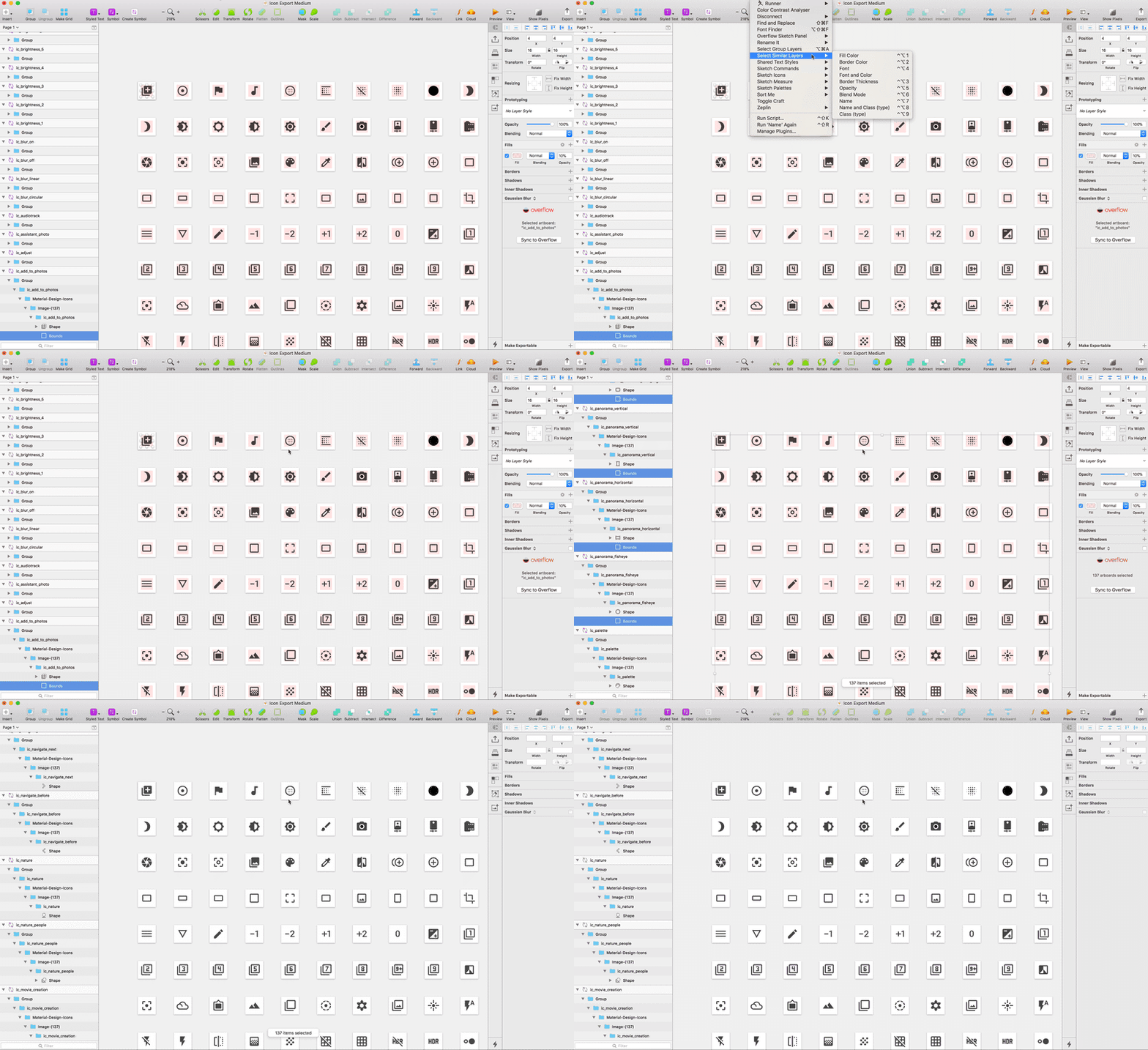
So I simply started by duplicating the Sketch file and used plugins to quickly remove all the masks from the icons. Because all the icons had the same color layer to start with, I could use the “Select Similar Layers” plugin to select all the layers named “blue” and simply delete them that way. Then I could use Expand Groups to unfold all the artboards, select all the layers and uncheck “Use as Mask” by using the shortcut ⌃⌘M. This was actually a really quick way to get rid of the main problem. If you can avoid this by exporting SVG’s before making a Sketch library with Masks, I’d still recommend that 😉
The Select Similar Layers plugin works great for removing …. similar layers.
Next Steps
Okay, so now I had a better Sketch file setup for exports. When the Icon Library was created in Sketch, a lot of work already went into collecting the icons and making them export friendly. This was before we decided to build an XML library and before we ran into the masking issue. I thought I could select all the artboards, export them as SVG, convert them to XML and things would be perfect 👌. Just kidding, I’m not that naive.
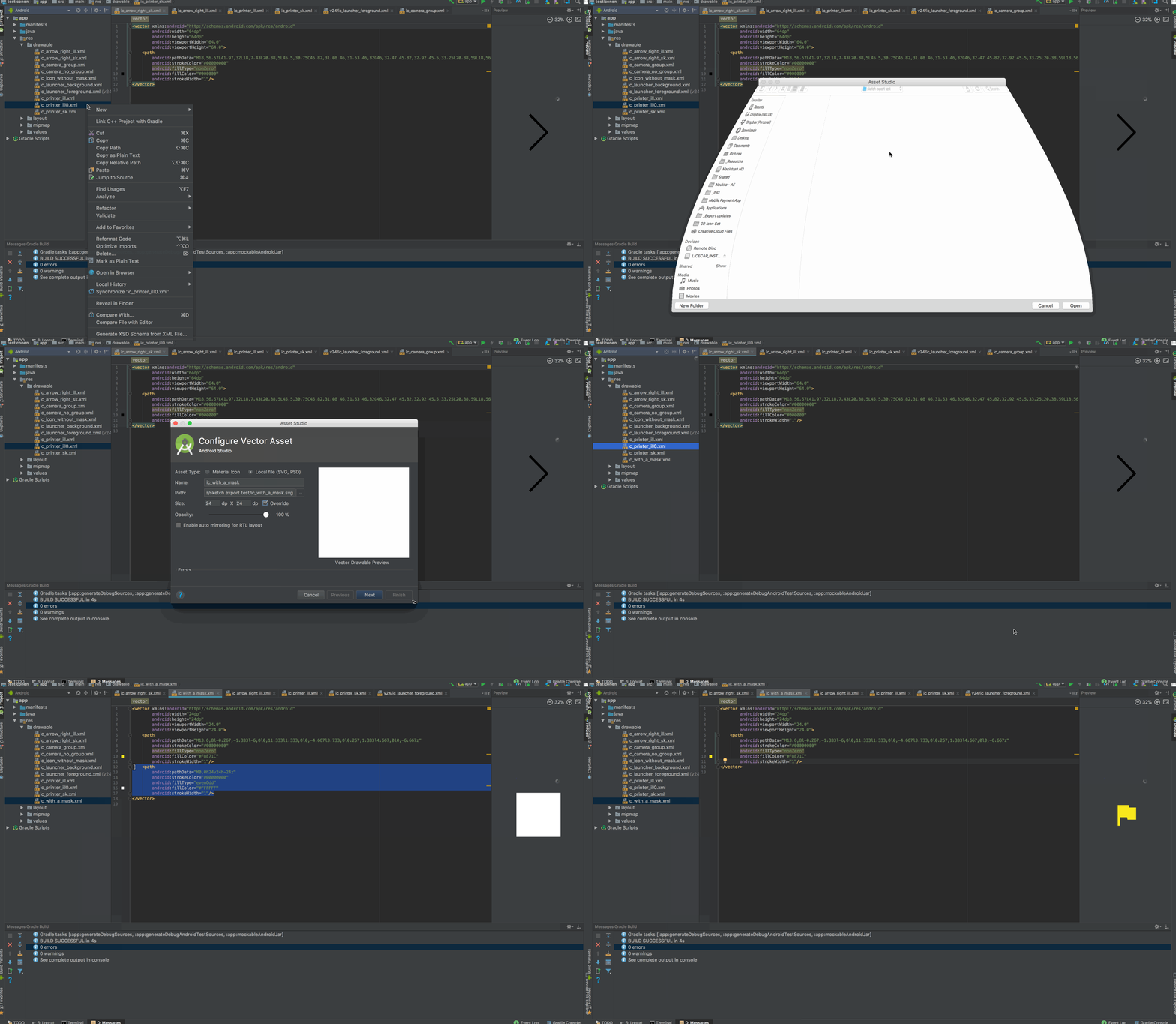
Unfortunately Sketch doesn’t offer an XML export option. Android Studio can convert SVG’s to XML in the Vector Asset Studio, but only one by one. As I had 200+ icons to convert, I decided to use the SVG2Android converter that was once recommended to me by an Android developer. The output is not perfect but it’s a good starting point. If you do have the time and patience (or a smaller batch of icons) to convert them one by one in Android Studio — do it.
Since I didn’t have them converted by Android Studio, I would add them to the drawables folder manually to check them individually. I simply looked at which folder Android Studio would add any assets to that were converted through the Asset Studio, and added my own XML files to the folder so they’d all be visible in Android Studio. This way I could check the code and preview to correct any errors as needed.
Running into errors
After converting, I got some warnings from both the SVG2Android Converter as well as Android Studio.
#1 The Scientific E notation
“Warning: found some numbers with scientific E notation in pathData which Android probably does not support. Please fix It manually by editing your editor precision or manually by editing pathData”
I’m starting with this one because it’s both tricky and misleading. The scientific E notation puts an exponent in the coordinates that Android Studio says could crash some devices. My mistake was to blindly trust the converter completely without checking if Android Studio could do a better conversion (spoiler alert: it can). My first ‘solution’ was to check which coordinates had the E notation by adding the XML file to the drawables folder in Android Studio and simply remove that part of the coordinates. This would usually show which vector points were the culprit. I’d change those in Sketch a little (our icons weren’t pixel perfect to start with so *shrug*) and hope the issue would be resolved. The first few times it worked fine and I could continue with the rest of the batch. At some point, I encountered icons that just couldn’t be ‘fixed’ that way. My next ‘solution’ was to copy them to Illustrator and export them from there (before making sure to release the Clipping Mask, remove that layer and fill in the icon again). While writing this post, I actually found out that the best solution is to convert it through Android Studio in the first place: no scientific E notations after the conversion at all.Oops. Lesson learned.
(N.B. Ideally, whether you’re converting to XML or not, you would be exporting your icons from Illustrator anyway, because they’d be designed in Illustrator to start with. It’s still superior in vector control and SVG export compared to Sketch.)
#2 The Fill Rule
Warning: found attribute ‘fill-rule:evenodd’ which is supported only on Android API 24 and higher
You seem to get this one no matter what, so don’t freak out, but it’s still an important little part of getting the basics right. When preparing icons in Sketch for export, make sure to set the fill to Non-Zero by clicking the cog wheel next to Fills in the Inspector. Sometimes this will break the icon when you’re working with a lot of different paths in paths in your shape. Make sure to fix it in Non-Zero by reordering your layers. Android Studio will still give a warning when the attribute (android:fillType) is there because it’s not supported in older Android API version. Because the default is Non-Zero, you’ll be good. You could even decide to just remove the attribute altogether (less code is better code?).
You can find a little extra information in this article and this one.
#3 Transforms
Warning: transforms on path are not supported, use option Bake transforms into path
This is a basic one. Any flips and rotations in the Sketch Inspector should be flattened into the shape before exporting. This not only better for exporting but also for using the icon in Sketch.